Put Dance Together on your Yoto
A short, beginner-friendly route to get these three songs onto a Make Your Own card.
Before you start, you'll need:
- The free Yoto app and a Yoto account.
- Your Yoto Player or Mini already set up and connected to Wi-Fi.
- A blank Make Your Own card, if you want to listen on the physical Yoto Player.
Starting with a brand-new player or Mini? Yoto's setup guide
Audio: Spanish + English.
No Play Aprende account needed. You'll need a Yoto account to add songs to a card.
Prefer to skip the card for now? Just listen here
1. Get the audio
Download 3 songs (ZIP)A ZIP won't open as audio by itself — your phone or computer needs to extract it into separate MP3 files first.
Or download each song separately:
If you downloaded a ZIP on an iPhone
Open the Files app, find the ZIP in Downloads, then tap it once — iOS unzips it automatically into a new folder with the three MP3s inside.
If you downloaded a ZIP on Android
Open your Files app, find the ZIP in Downloads, tap it, and choose Extract or Unzip. If your phone has no built-in option, a free unzip app from the Play Store will do it.
2. Add it to your Yoto library
Web browser — my.yotoplay.com
This step happens in a web browser, not the phone app itself — on a phone, tapping New Playlist in the app opens this automatically.
- Go to my.yotoplay.com/my-cards and log in with your Yoto account.
- Tap New Playlist, then MAKE NEW.
- Upload the three MP3 files you extracted.
- Name the playlist "Dance Together" — phase 3 asks you to find it by this name.
- Tap SAVE.
3. Link the Make Your Own card
Yoto app
- Open the Yoto app and find your new playlist.
- Tap it, then the ⋮ menu, then Link to a Card.
- Put a blank Make Your Own card into your Yoto Player and tap Link.
- Watch for a red record icon, then a green tick.
4. Confirm it plays
Yoto Player
- Take the card out and put it back in.
- Press play. If Dance Together starts, the card is linked correctly.
Print your card label
Optional — the sticker goes on the front of the card and isn't required for the card to work.
Choose the PDF that matches your printer paper: US Letter or A4. Print on full-sheet sticker paper, or ordinary paper to check the size. Print at 100% / Actual size.
Separate check: ready for offline listening
Playing once doesn't confirm the files are fully downloaded — it may just be streaming. To check for certain: in the Yoto app, go to Settings → My Players → Audio Download Status. It lists each title as downloaded or still waiting. Leave the Player plugged in and on Wi-Fi (not playing) until Dance Together shows as downloaded — that can take longer than a few minutes.
If something's not working
I downloaded a ZIP — what now?
A ZIP is a folder of files, not a song by itself. Open it on your phone or computer first (see the iPhone/Android notes above) so you have three separate MP3 files, then continue with phase 2.
The playlist is in the app, but my card doesn't play it.
Go back to the playlist, tap the ⋮ menu and Link to a Card again, keeping the card in the Player the whole time until you see the green tick.
I linked the wrong playlist.
Linking again simply replaces what a card points to — open the right playlist, tap Link to a Card, and relink it the same way.
It played once, but I'm not sure it's ready for offline use.
Playing once isn't proof — it may have streamed rather than downloaded. Check Settings → My Players → Audio Download Status in the Yoto app: it shows downloaded vs. still waiting for each title, which is the real confirmation.
You're done when:
- Dance Together appears as a playlist in your Yoto app.
- You saw the green tick after linking it to the card.
- The card plays Dance Together when inserted (tested once on Wi-Fi).
Free bilingual songs for Yoto Make Your Own cards
Download free MP3s in Spanish, English and Portuguese and add them to a Yoto Make Your Own (MYO) card. No sign-up, no subscription.
How to add our songs to a Yoto MYO card
- Download the MP3. Tap Download on any song below, or grab a playlist ZIP and unzip it. Tracks are numbered so they play in order.
- Create a Make Your Own playlist. Open the Yoto app, go to Make Your Own and start a new playlist.
- Add the files. Upload the MP3s to the playlist.
- Give it an icon. In the app, pick a library icon or upload your own square image (about 640×640px) so you can tell your cards apart at a glance.
- Link it to a card. Link the playlist to a blank MYO card, put the card in your Yoto player and press play.
Why these work well on Yoto
- Plain MP3 files that upload straight into the Yoto app.
- Short songs, ideal for ages 0–5, plus calm bedtime tracks.
- Playlists as one ZIP — one download becomes one card.
- Spanish, English and Portuguese, so the whole family can learn together.
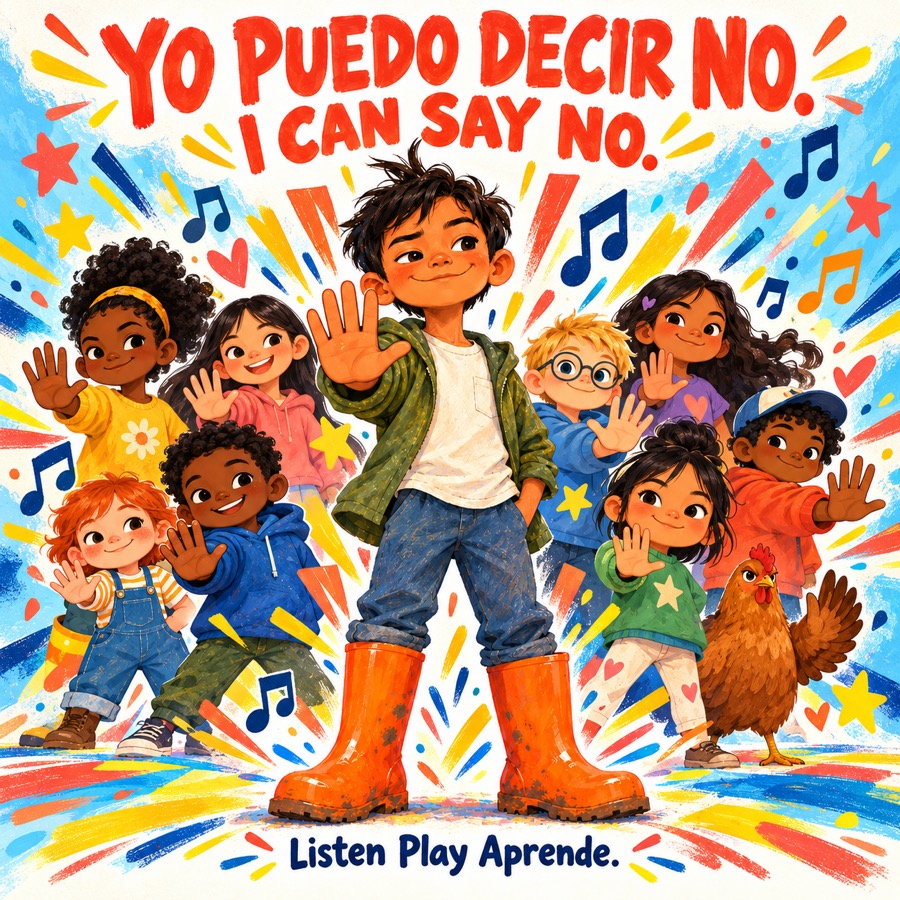
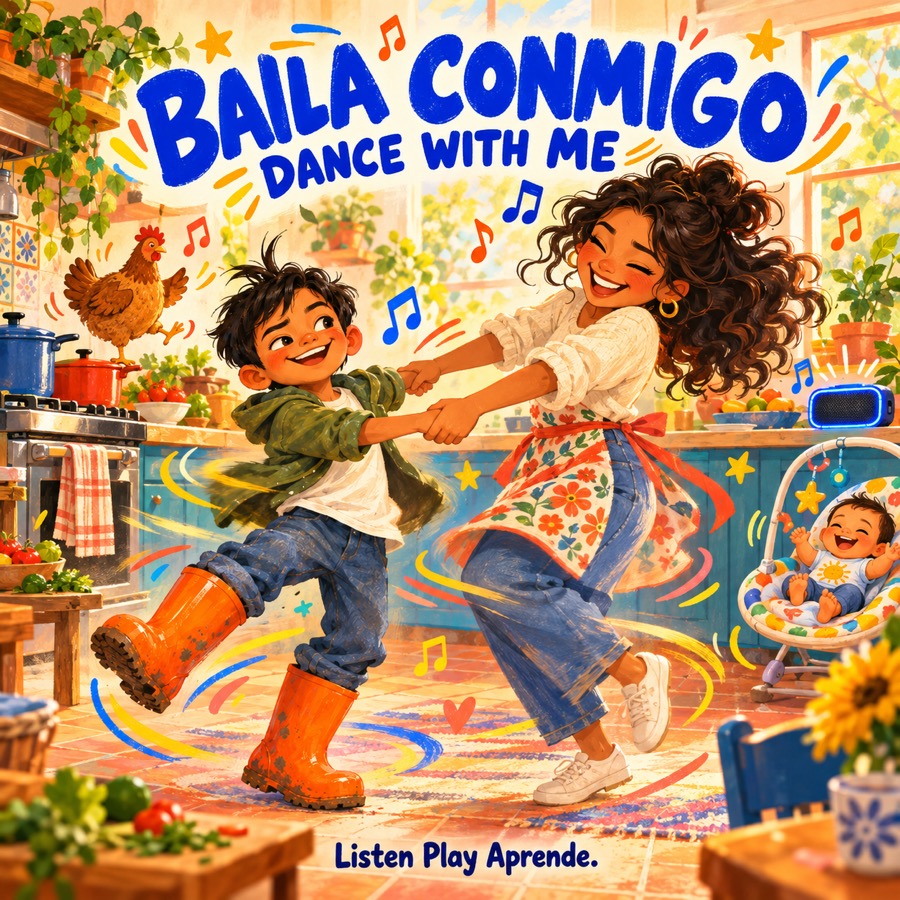
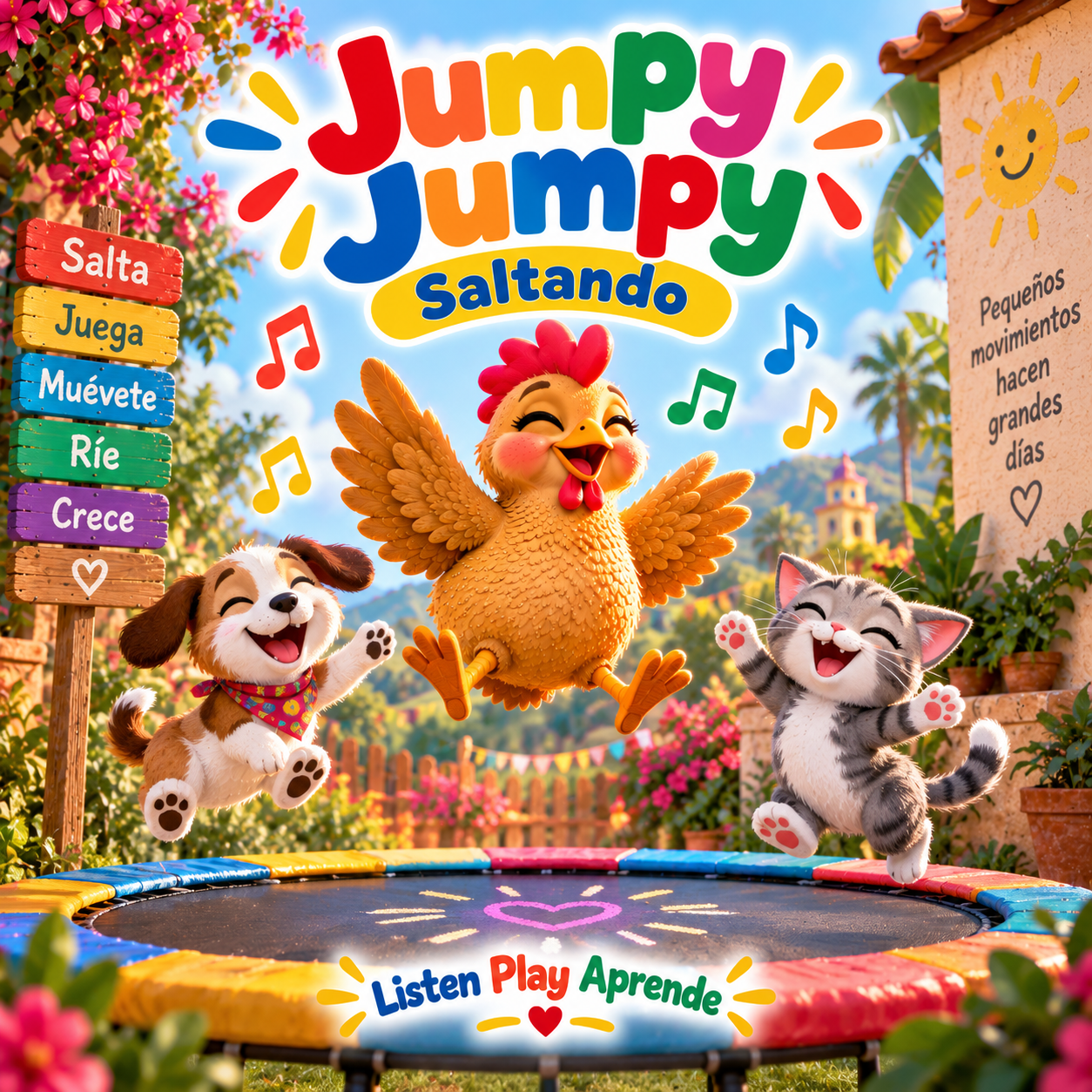
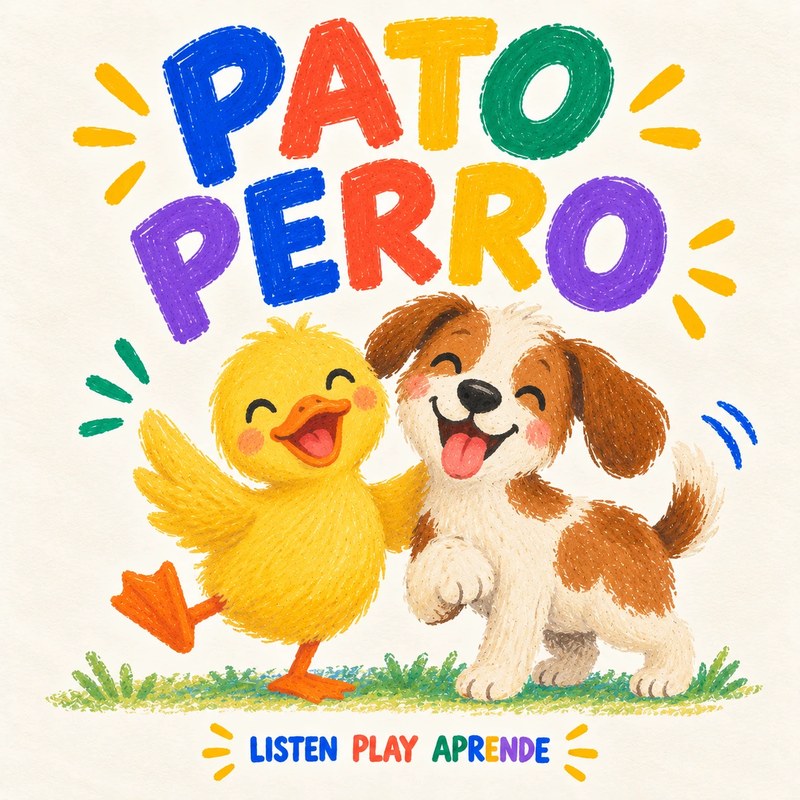
Songs to download for your Yoto card
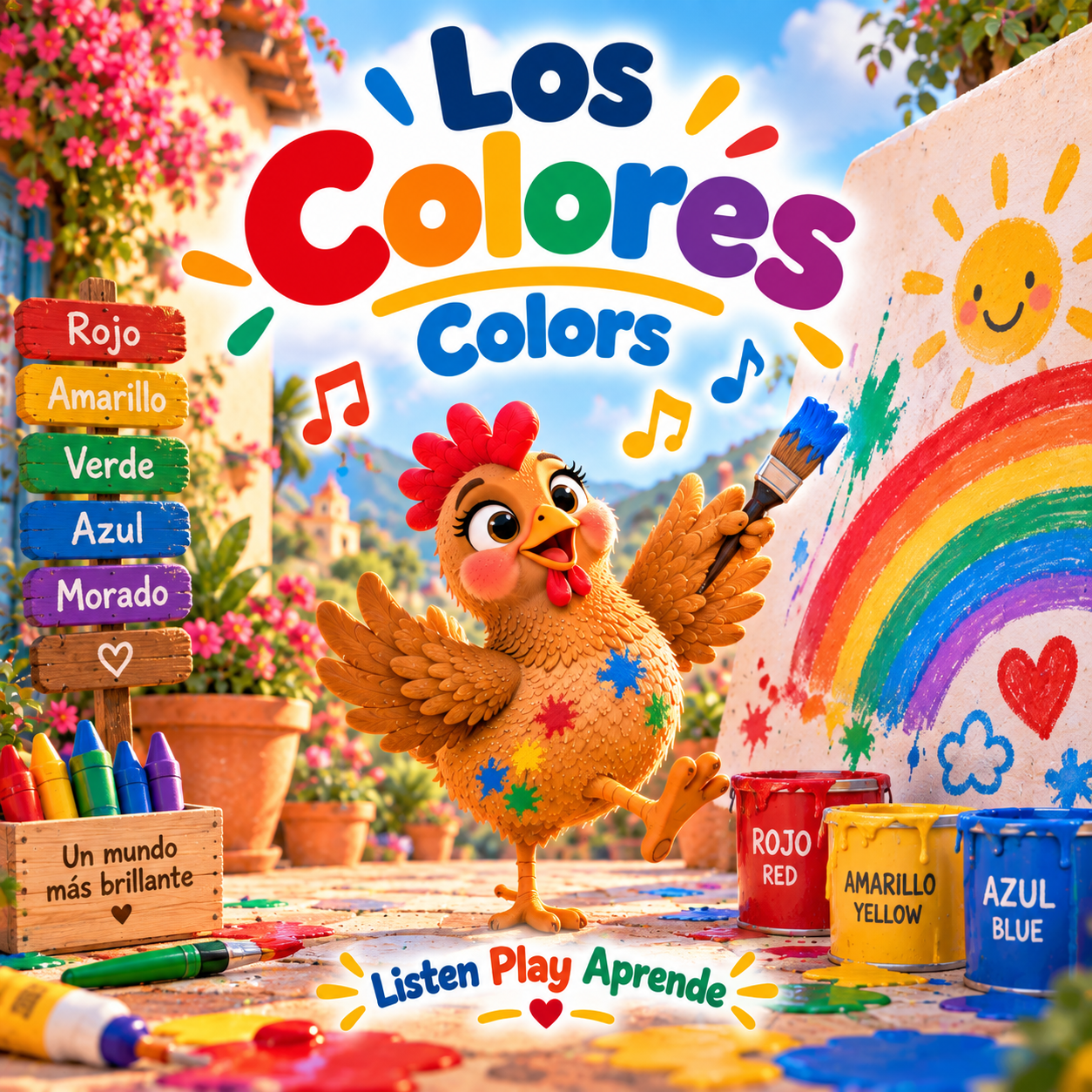
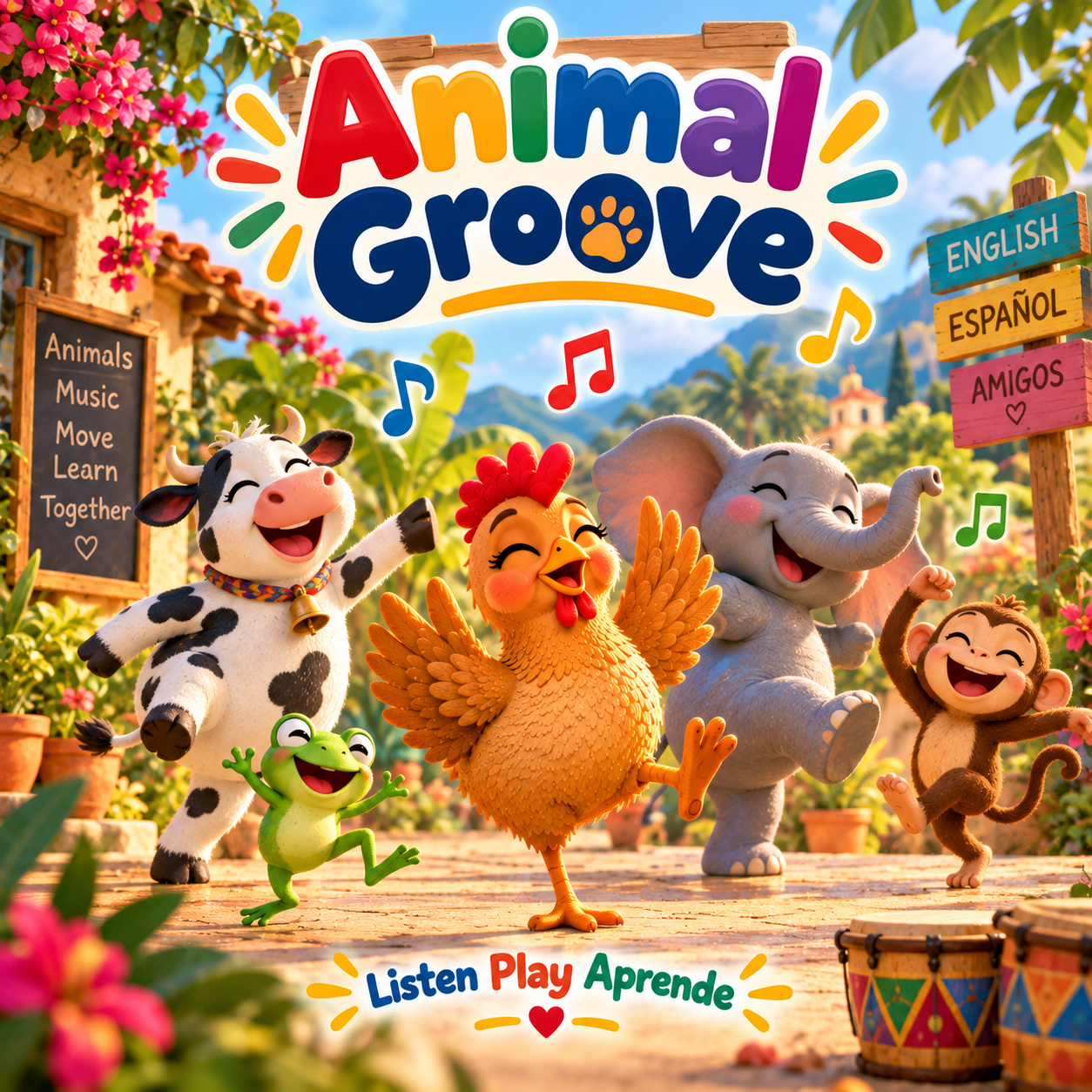
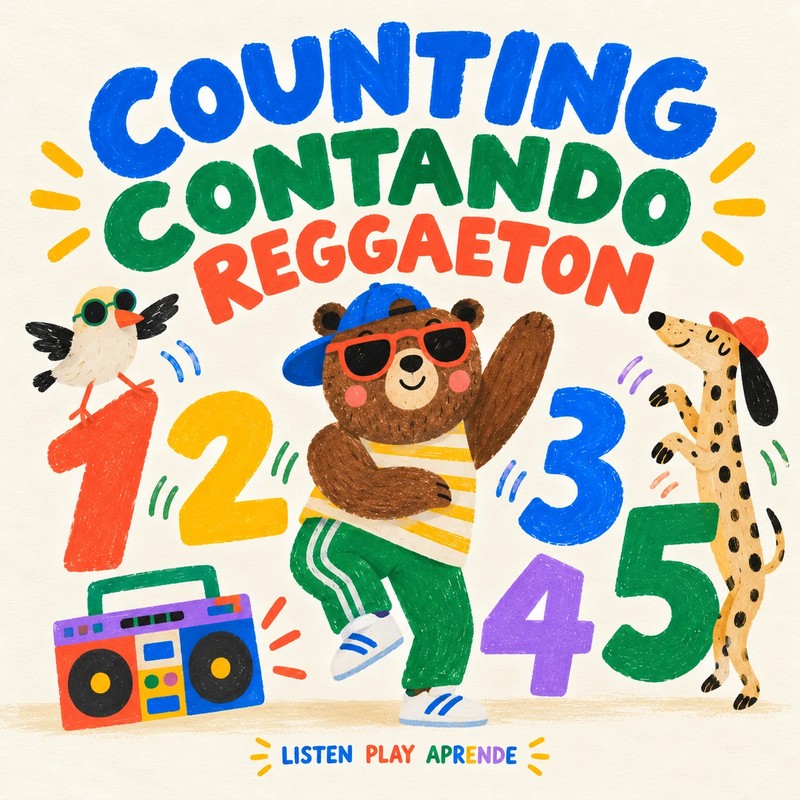
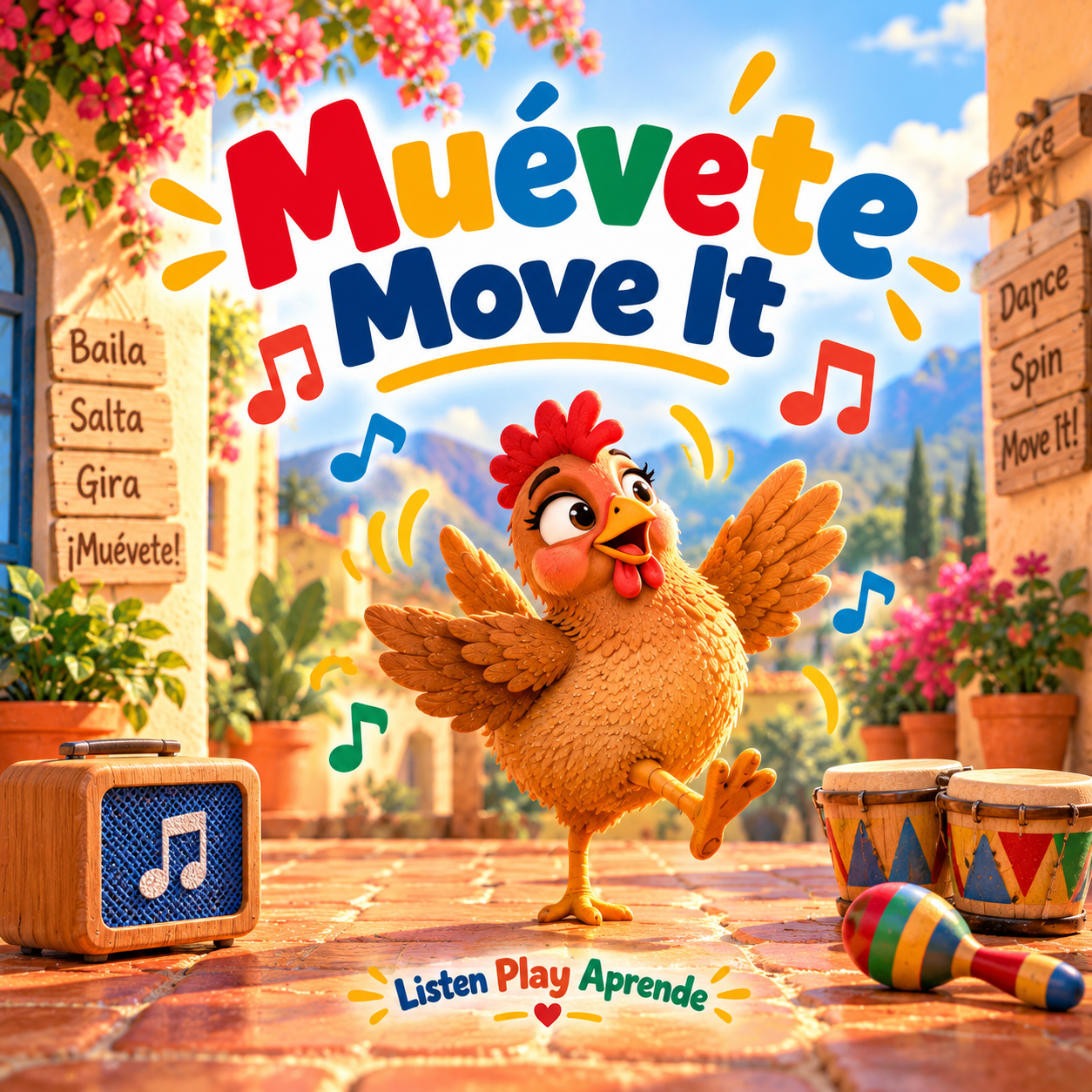
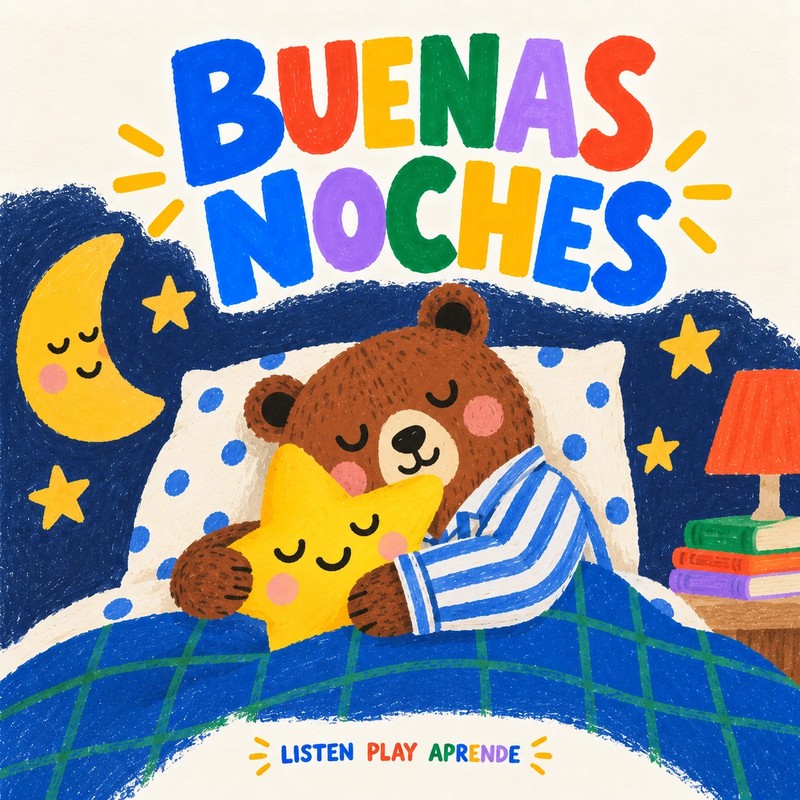
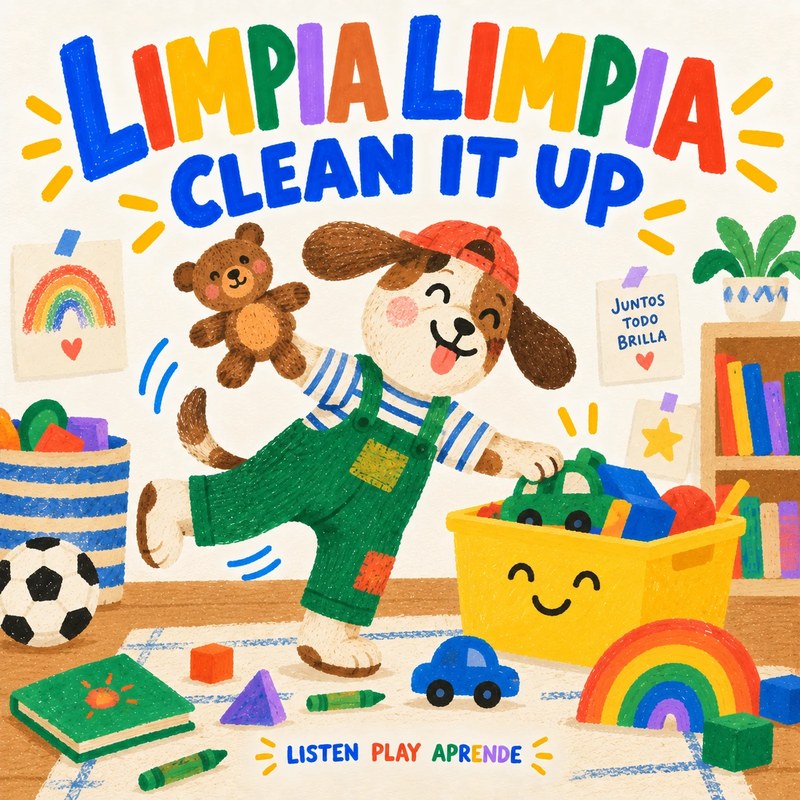
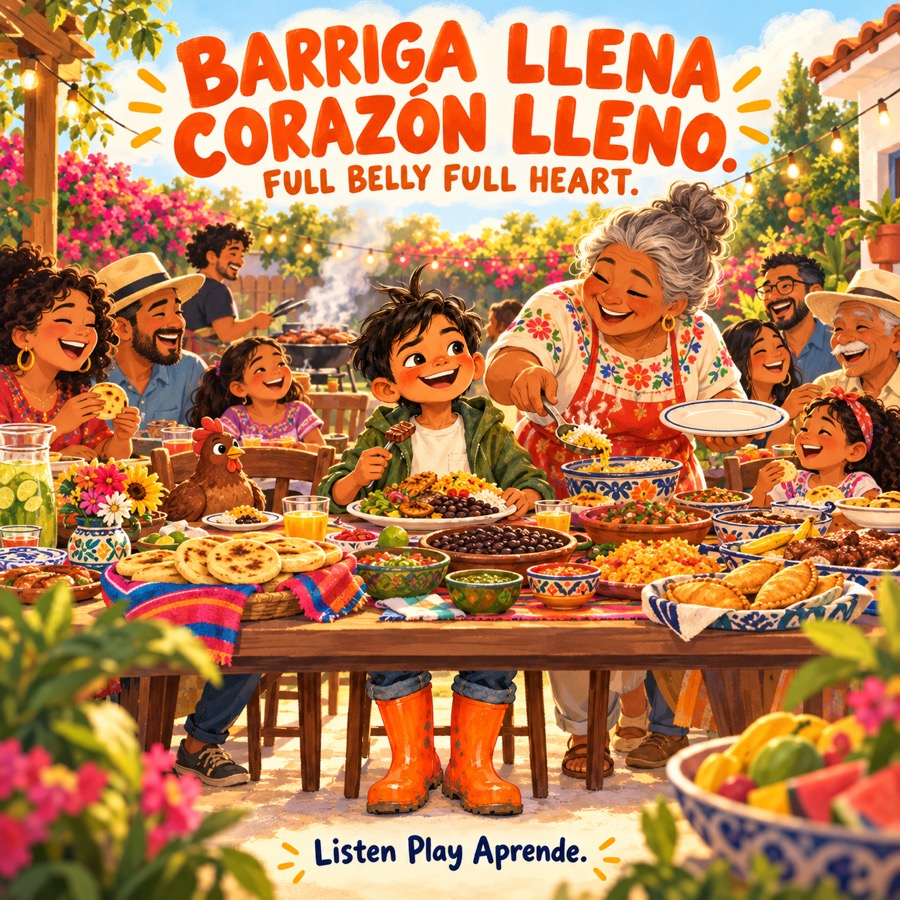
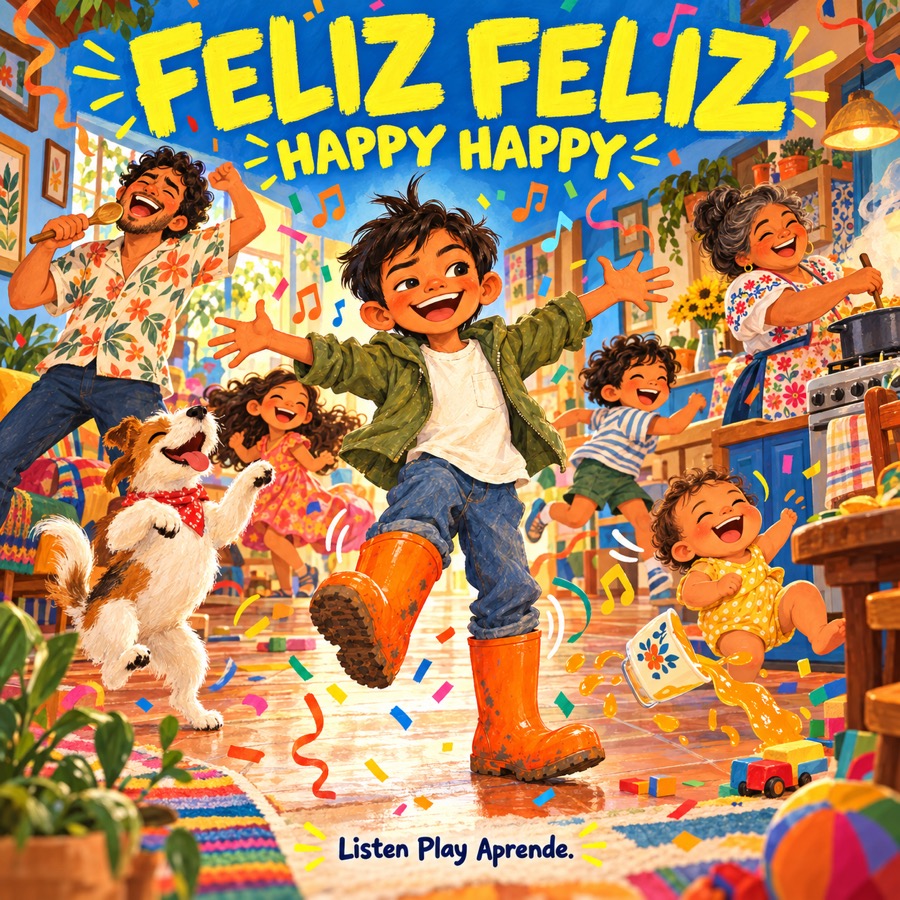
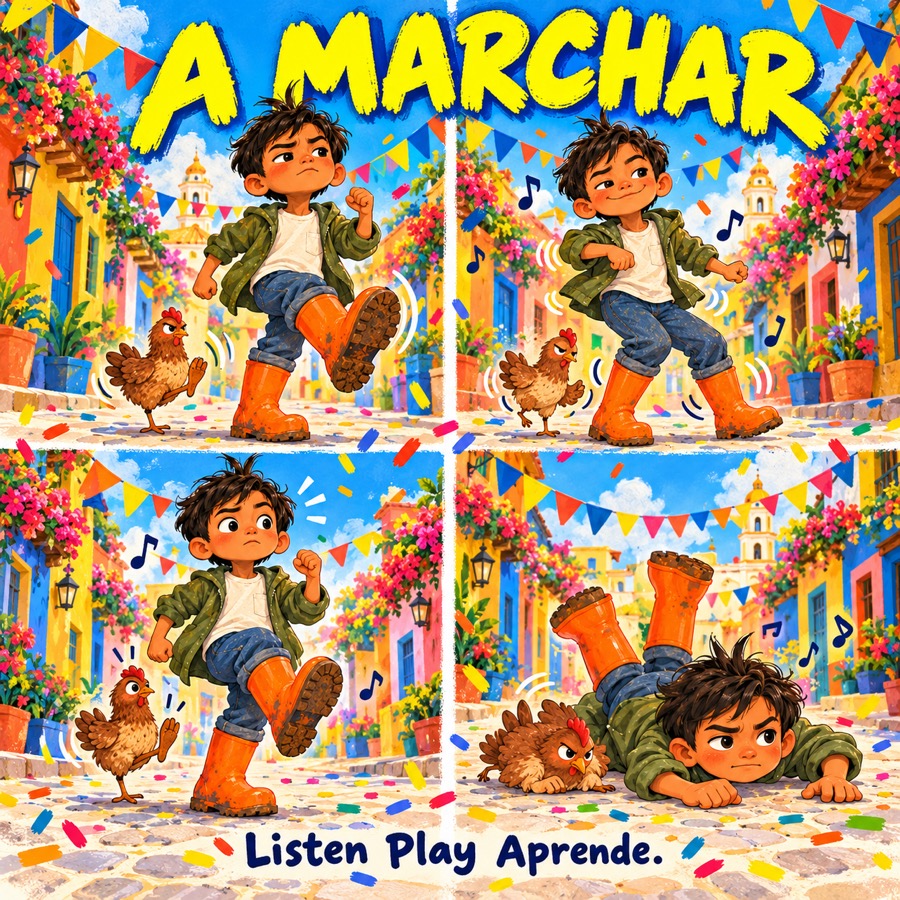
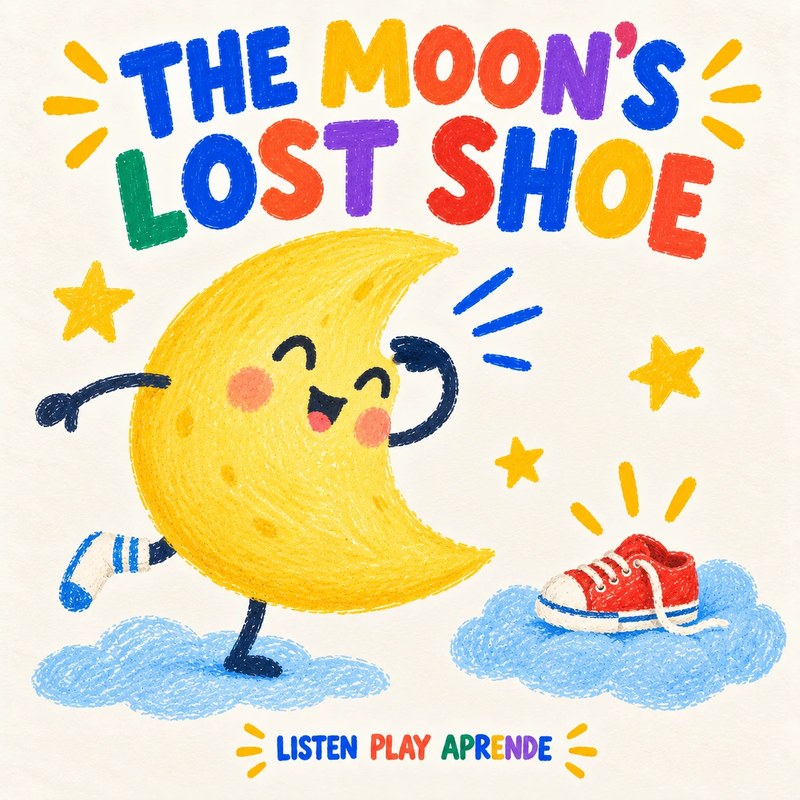
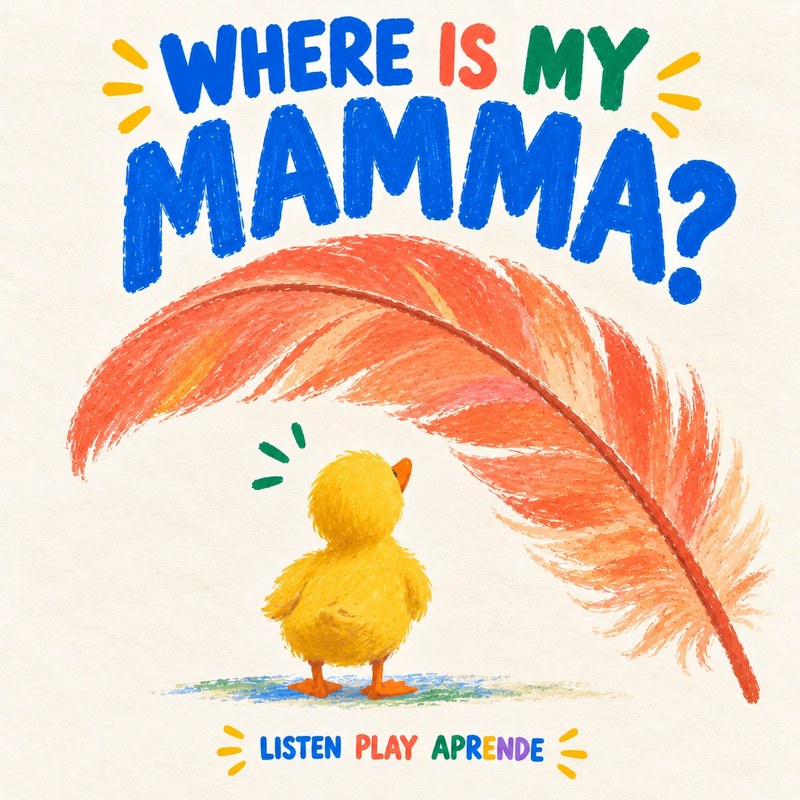
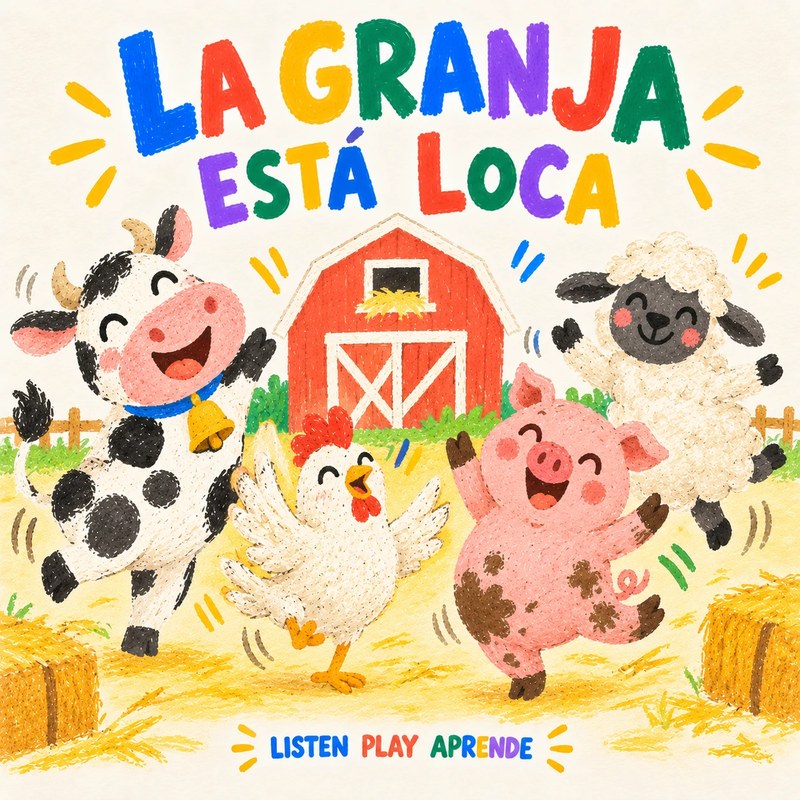
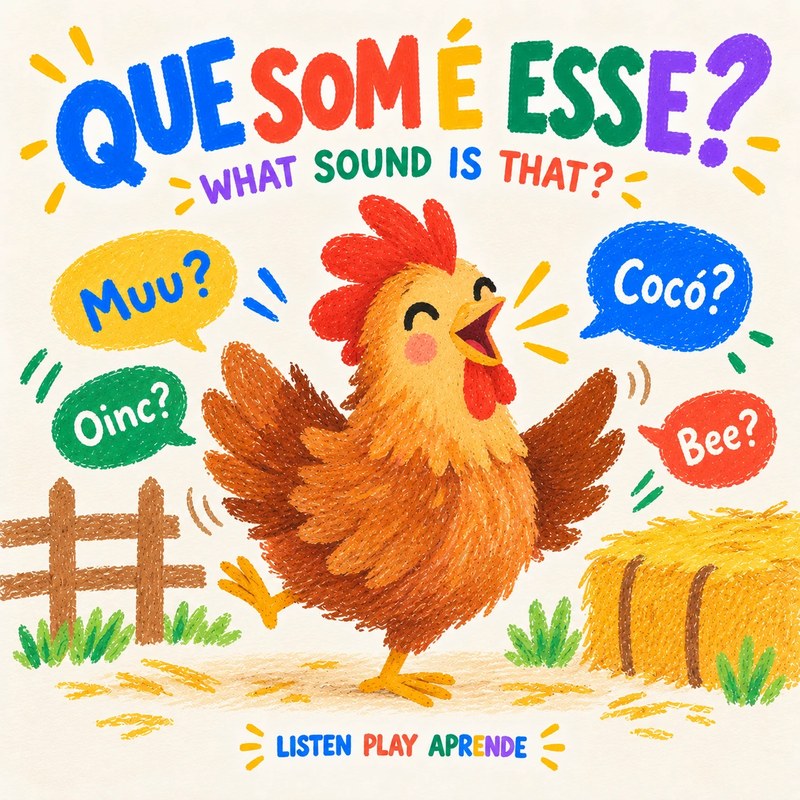
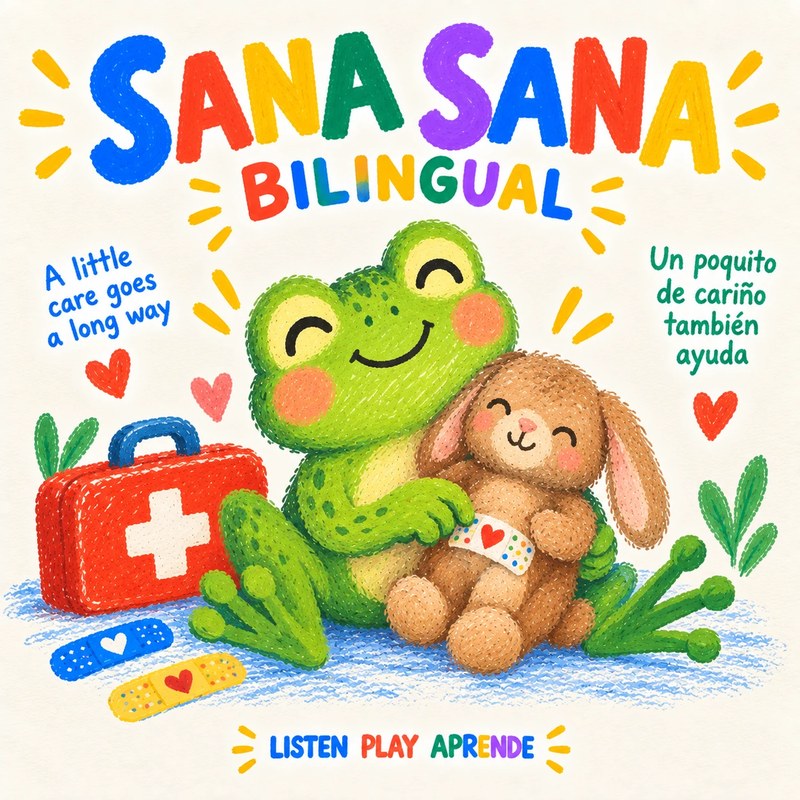
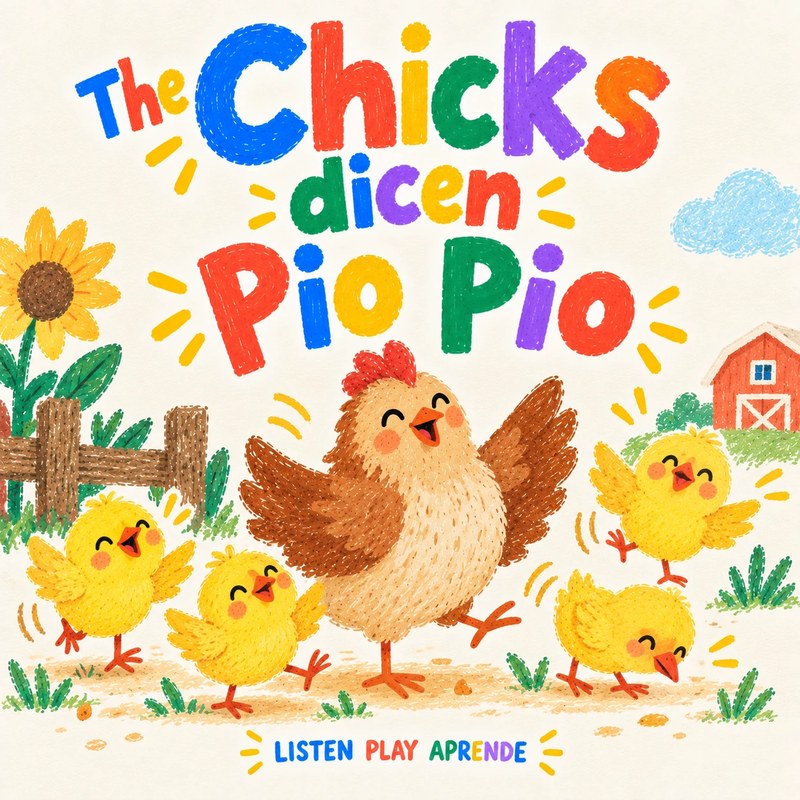
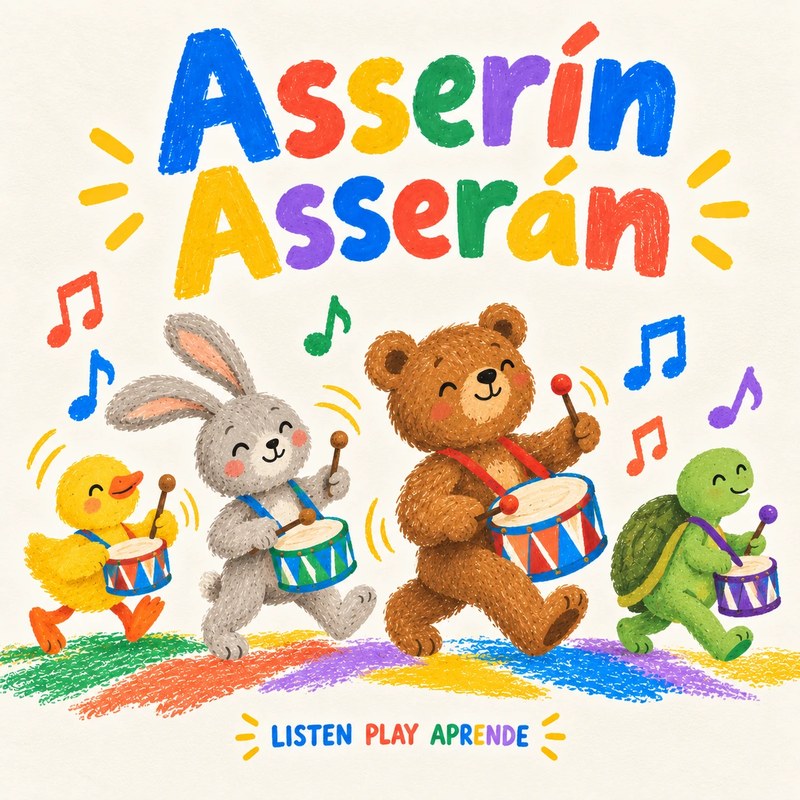
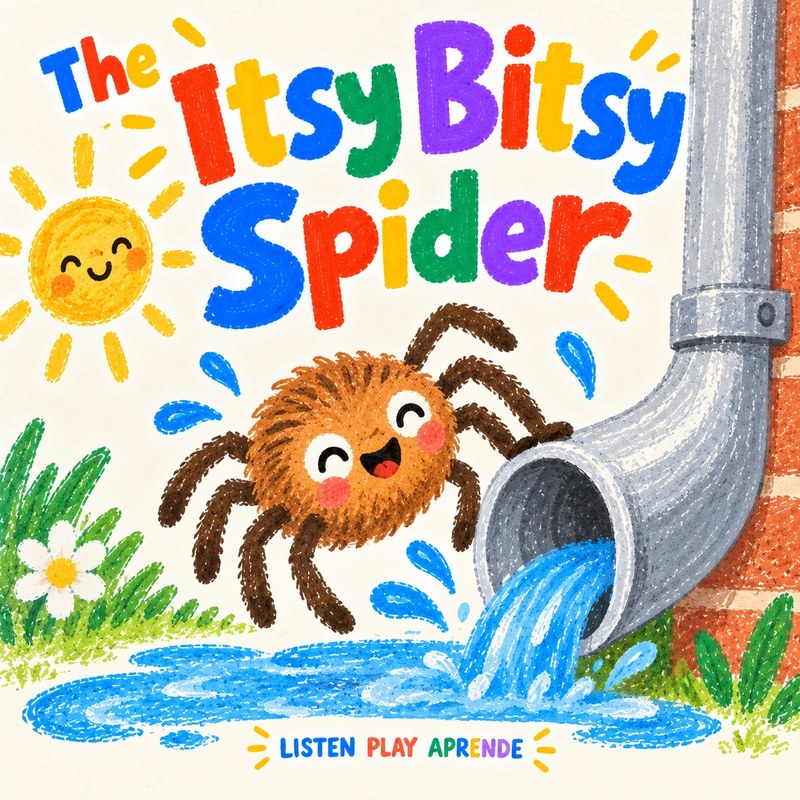
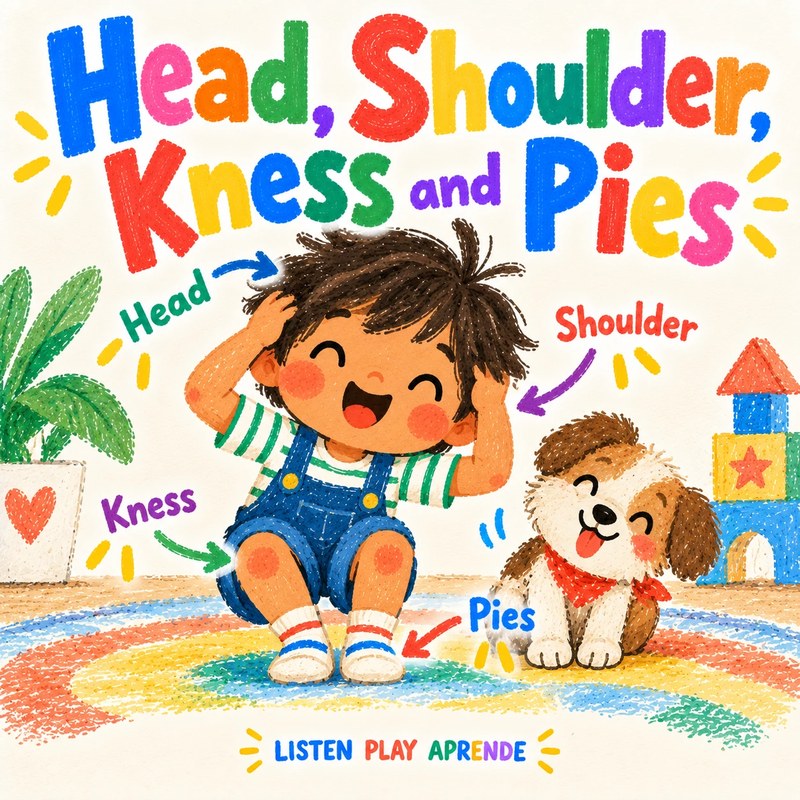
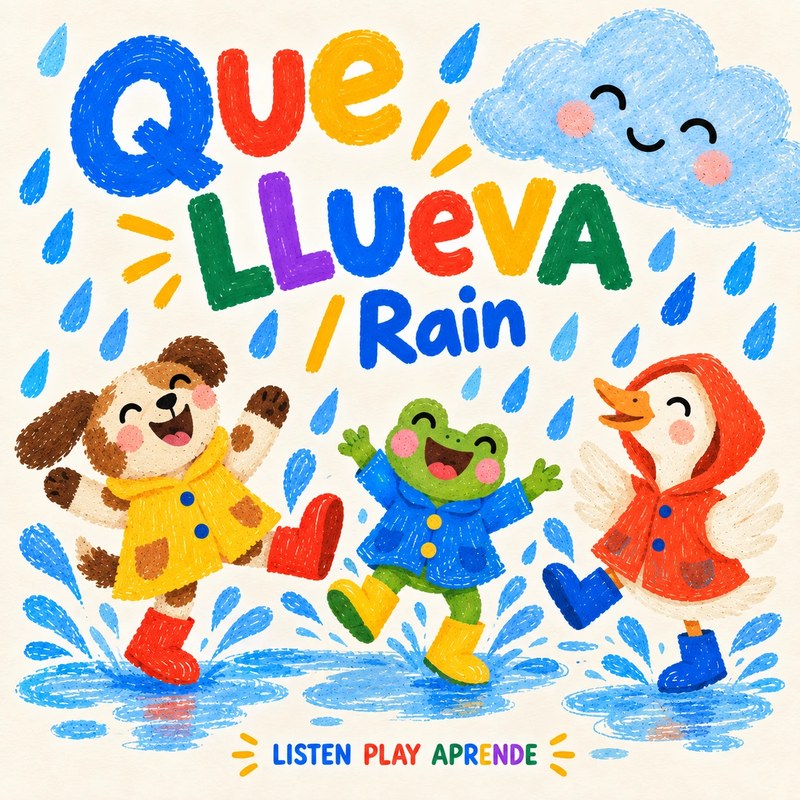
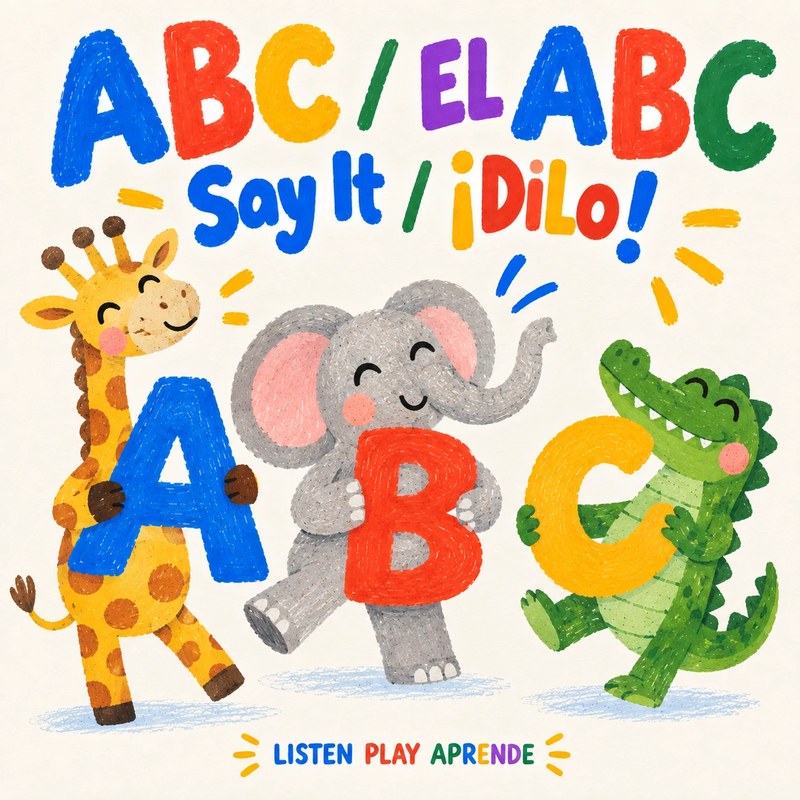
Playlist ZIPs for one Yoto card
Yoto questions
Are the songs really free for Yoto?
Yes. Every song is a free MP3 download with no account needed. You only need your own Yoto player and MYO cards.
Do I need to convert the files?
No. They are standard MP3s, which the Yoto app accepts as they are.
Can I put a whole playlist on one card?
Yes. Unzip a playlist, upload all its numbered tracks to one Make Your Own playlist and link it to a single card.
Using a Creative Tonie instead? → · Help → · Yoto activities → · MYO ideas →